
In the previous tutorials, you learned how to create 1D histograms and perform Gaussian fits using PyROOT.
Now we move one step ahead and explore 2D histograms, which are extremely useful in physics
for visualizing correlations between two variables — for example:
- Energy vs Time
- X vs Y detector positions
- Two correlated detector signals
- Calibration maps
In ROOT, 2D histograms are created using the TH2F class.
We will learn how to build, visualize, customize, and save them using Python.
📄 Step 1 — Create a Python Script
Open a text editor and save the following code as:root_2d_histogram.py
import ROOT
import math
import random

# -------------------------------------------------------
# 1) Create a 2D histogram TH2F
# -------------------------------------------------------
h2 = ROOT.TH2F("h2", "2D Correlation; X values; Y values",
               50, -4, 4,     # X bins, range
               50, -4, 4)     # Y bins, range

# -------------------------------------------------------
# 2) Fill histogram with correlated data
# -------------------------------------------------------
for _ in range(20000):
    x = ROOT.gRandom.Gaus(0, 1)
    y = 0.6 * x + ROOT.gRandom.Gaus(0, 1)  # correlation
    h2.Fill(x, y)

# -------------------------------------------------------
# 3) Create a canvas and draw the histogram
# -------------------------------------------------------
c = ROOT.TCanvas("c", "2D Histogram Example", 900, 700)
c.Divide(1, 2)

# Draw as color (heatmap)
c.cd(1)
h2.Draw("COLZ")

# Draw as scatter plot
c.cd(2)
h2.Draw("SCAT")

# -------------------------------------------------------
# 4) Save the images
# -------------------------------------------------------
c.SaveAs("hist_2d_output.png")
print("Saved: hist_2d_output.png")

# Save to a ROOT file
f = ROOT.TFile("hist_2d_output.root", "RECREATE")
h2.Write()
f.Close()
print("Saved: hist_2d_output.root")
▶️ Step 2 — Run the Script
Open a ROOT-enabled terminal:
cd C:\root\root\bin
thisroot.bat
Now run your Python script:
py -3.11 C:\root\root\bin\root_2d_histogram.py(In my computer, the path of the folder where the code root_2d_histogram.py is saved is C:\root\root\bin. You have to choose your folder path.)
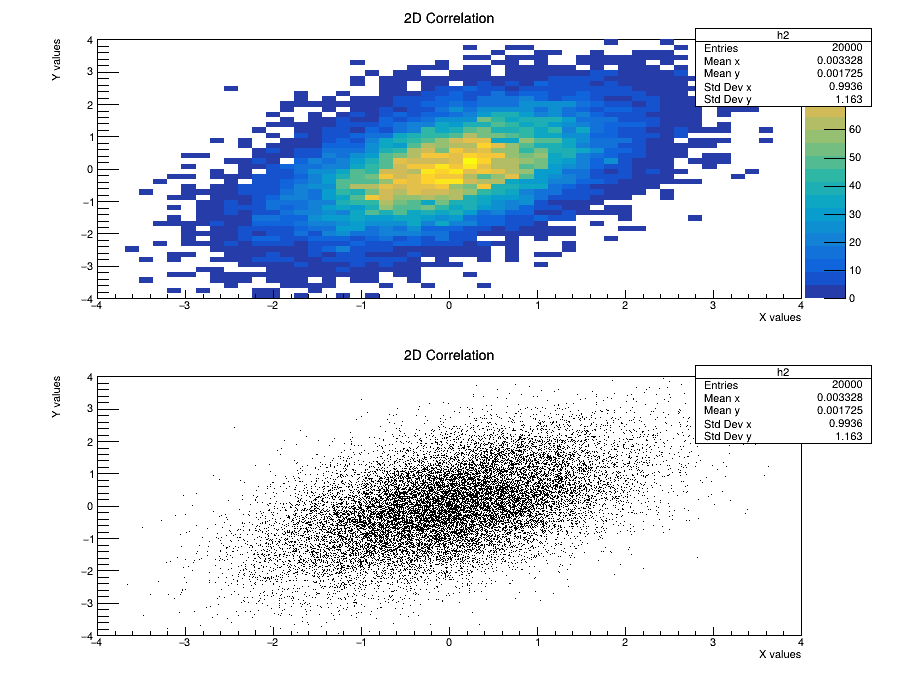
You will get:
hist_2d_output.png— the 2D plot as shown belowhist_2d_output.root— histogram stored for later use
🔽 Detailed Explanation (Click to Expand)
Show / Hide Explanation
1️⃣ What is a TH2F?
TH2F is a 2D histogram class in ROOT.
The “2” means it has two dimensions (X and Y), and “F” means the bin contents are stored as floats.
2️⃣ Creating the Histogram
h2 = ROOT.TH2F("h2", "2D Correlation; X values; Y values",
               50, -4, 4,
50, -4, 4)"h2"— internal name"2D Correlation; X; Y"— title and axis labels50, -4, 4— number of X bins + X-range50, -4, 4— number of Y bins + Y-range
3️⃣ Filling the Histogram
x = ROOT.gRandom.Gaus(0, 1)
y = 0.6 * x + ROOT.gRandom.Gaus(0, 1)
h2.Fill(x, y)x is large, y tends to be large too.
4️⃣ Drawing the Histogram
c.Divide(1, 2)
c.cd(1); h2.Draw("COLZ")
c.cd(2); h2.Draw("SCAT")
COLZ produces a heatmap, while SCAT shows scatter points.
5️⃣ Saving the Plot
c.SaveAs("hist_2d_output.png").png, .pdf, .jpg, .eps, etc.
6️⃣ Saving to a ROOT File
f = ROOT.TFile("hist_2d_output.root", "RECREATE")
h2.Write()
f.Close()🧠 Understanding the Draw Options
"COLZ"— draws a heatmap with a color scale on the right"SCAT"— draws scatter points (useful for sparse data)"BOX"— box-style colored squares"TEXT"— print numbers inside each bin
📚 Summary
TH2Fis used for 2D histograms (correlations)Draw("COLZ")creates heatmapsDraw("SCAT")creates scatter plots- 2D plots are widely used in detector calibration, coincidences, and machine learning preprocessing
In the next tutorial, we will explore graph objects in ROOT — especiallyTGraph and TGraphErrors for plotting data points with uncertainties.
References & Further Reading
- CERN ROOT — Official Website: https://root.cern/
- Brun, R. & Rademakers, F. (1997). “ROOT – An Object Oriented Data Analysis Framework.” Nuclear Instruments and Methods in Physics Research A, 389(1–2), 81–86. DOI: 10.1016/S0168-9002(97)00048-X
- CERN Documentation: ROOT User Manual and Tutorials
- TMVA Toolkit for Multivariate Data Analysis: https://root.cern/manual/tmva/
- GEANT4 Collaboration. “GEANT4 – A Simulation Toolkit.” Nuclear Instruments and Methods in Physics Research A, 506(3), 250–303 (2003). DOI: 10.1016/S0168-9002(03)01368-8
- FLUKA Simulation Package — Official CERN Page: https://fluka.cern/
- CERN Open Data Portal — Public Datasets for Education and Research: https://opendata.cern.ch/
- CERN Scientific Computing Documentation: https://home.cern/science/computing
- C++ ROOT Tutorials for Beginners (Official GitHub Examples): https://github.com/root-project/root/tree/master/tutorials